

The next eight weeks are gift season. A big share of the orders you take between now and Christmas will not be opened by the person who paid for them. They will be opened by a niece, a client, a friend across the country. That person has never heard of your store. The box is their first impression.
Make it a good one and you win twice: the buyer looks thoughtful, and the recipient remembers where it came from. Get it wrong and the gift arrives with the price printed inside. The same goes for drop-shipping and partner orders, where the wrong name or the wrong numbers on a slip can cost you a customer. WP EasyCart lets you fix all of it once, so every box goes out right without anyone thinking about it.
The box is the brand.
For most small stores the packing slip is an afterthought. It prints with the label and goes in the box. But it is the only piece of paper a customer holds, and one slip does not fit every order:
- Gifts. A slip with prices and totals turns a present into a receipt. Nobody wants the recipient to know it was on sale.
- Drop-shipping. When a supplier or a partner packs the order, the slip should carry the right branding and the SKUs their team picks by, not your prices.
- Trade orders. A business buyer’s receiving team wants the order and PO number, not a thank-you note.
Most carts give you one template for all of them, so you end up hand-editing slips or leaving prices off for everyone. WP EasyCart gives each job its own version of the slip, and picks the right one for each order. It is part of order fulfillment in WP EasyCart.
Start with a clean slip.
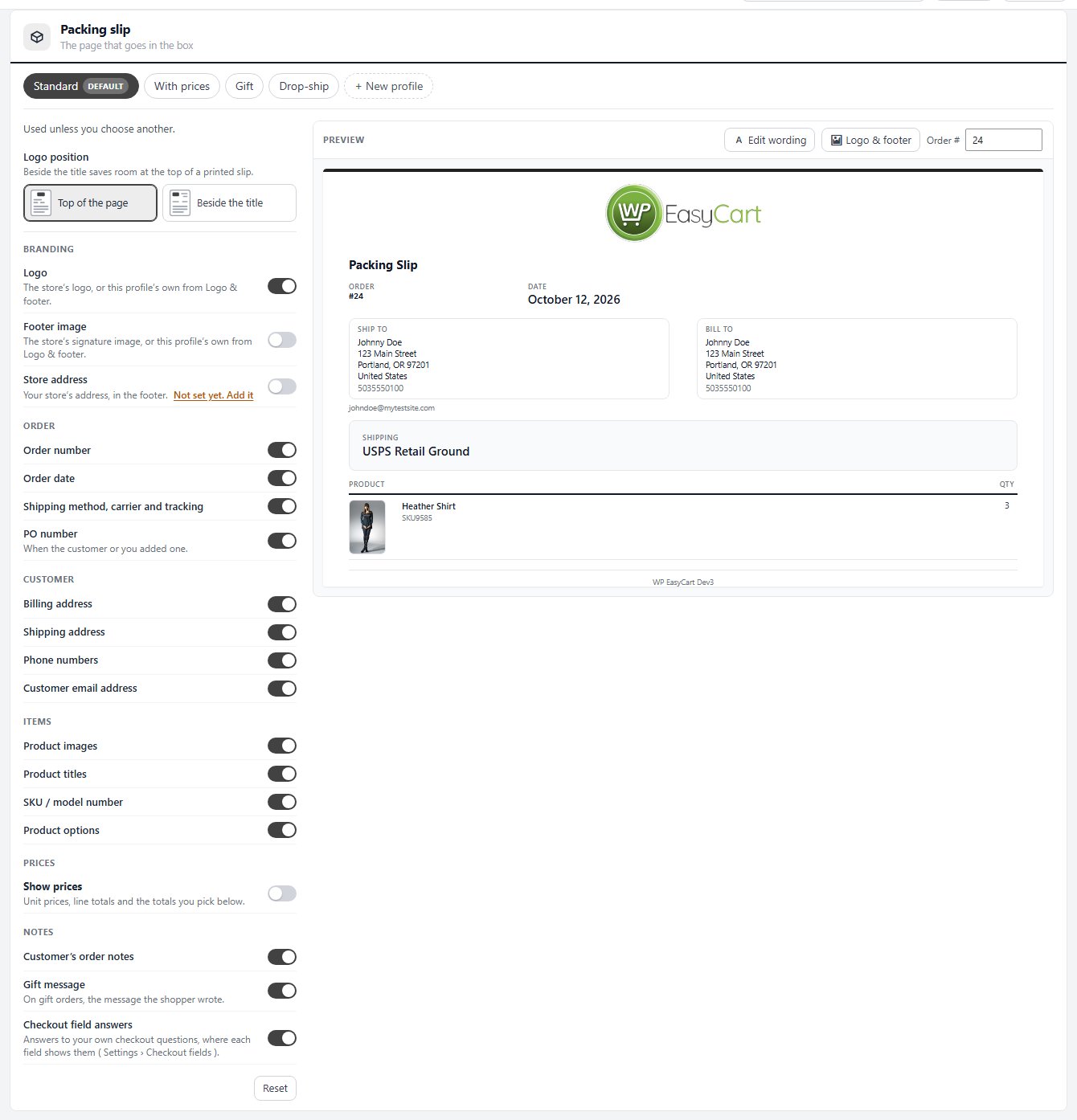
Every store, free edition included, gets a packing slip editor in EasyCart › Settings › Emails & Documents › Documents. Open Packing slip and you see each switch beside a live preview of one of your own orders. Type a different number in the Order # box to test a harder order.
- Show prices is off on new stores, so the slip lists what is in the box, not what it cost.
- SKU / model number and Product options help your team pick the right size and colour first time.
- Shipping method, carrier and tracking print once the order has them, which helps with split or re-sent parcels.
- Logo position puts your logo at the top of the page or beside the title, to save room on a printed slip.
Print it from the order screen with Print the packing slip, or print several at once from the orders list, each on its own page. This much is free, and for a store that never sells gifts it may be all you need.
One slip per job.
With WP EasyCart PRO the packing slip gets profiles: named versions of the same document, each with its own switches. Every store starts with four:
- Standard. The one used unless something picks another.
- With prices. Prices and every total, for stores where the slip doubles as a receipt.
- Gift. No prices, billing address, contact details or order notes.
- Drop-ship. Your branding and SKUs, with no prices, images or customer contact details.
Need something else? Open the closest profile and press + New profile. It copies the switches, the branding and the logo position under the name you give it. Make default decides what prints and sends automatically from then on, and Reset puts a built-in profile back the way it ships.
Check the preview before you switch
Changing the default profile changes every automatic print and email from that moment. Look at a real order in the preview first, then make it the default.
Gifts, sent properly.
A gift-ready slip only helps if the store knows which orders are gifts. That is what Gift orders does. On the same Documents page, open the Gift orders section and switch on Let customers mark an order as a gift. Both checkouts then show a Send this order as a gift option.
- Where checkout asks. With the shipping address, where shoppers decide who the parcel is for, or just before Place order, which keeps the first step shorter.
- A gift message. Shoppers can add a message of up to 200 characters. It prints on the packing slip and the gift receipt, so it travels in the box.
- The right paperwork, automatically. A gift order uses the profiles you choose here: the Gift packing slip, and a Gift shipped email for the buyer with no prices and no billing address. The buyer’s own receipt still shows what they paid.
Turn on Email a gift receipt to the recipient and checkout asks for the recipient’s email as an optional field. When the order ships, they get a gift receipt with who it is from, what is on the way, the gift message and a line on how to exchange it. A gift receipt never shows prices. You can also send it from the order screen at any time.
Tell shoppers it is there
A gift option nobody notices does not get used. Mention it on your product pages and in your holiday emails: “Sending it as a gift? Tick the box at checkout and we will leave the prices out.”
Their logo. Your order.
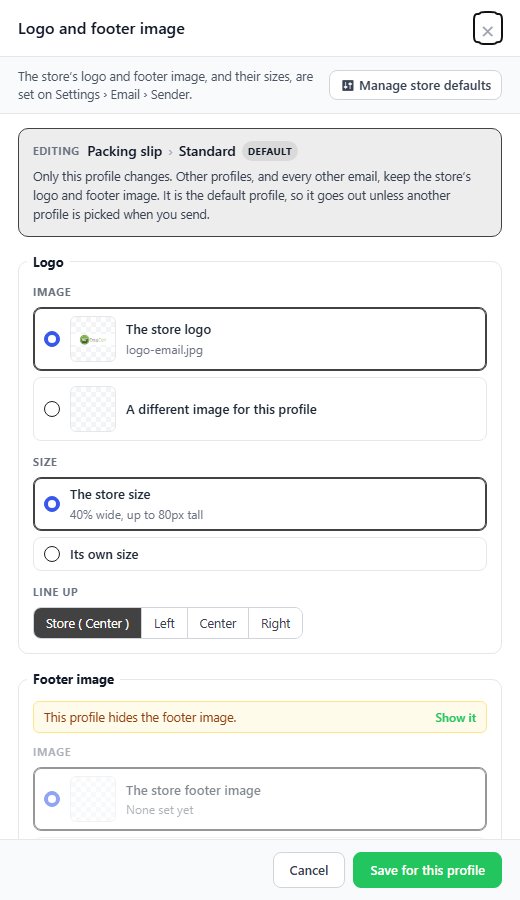
Drop-shipping, white-label products and partner stores all need the same thing: a slip that carries someone else’s name. Open the Drop-ship profile, or a copy of it named for the partner, and press Logo & footer beside the preview. Choose A different image for this profile, pick the partner’s logo from the Media Library, and set its size and Line up. Only that profile changes. Your receipts and emails keep your own logo.
Then get the slip to whoever packs the order. On the order screen, Send Email sends the packing slip to any address you type in To, with Cc and Bcc, and lets you pick the profile and preview it before it goes. Your supplier gets a clean, branded slip with SKUs, and your customer’s phone and email stay off it. Step by step: Sending Order Documents.
Set the rules once.
Picking a profile by hand works for the odd order. For a steady flow, let the store decide. Document rules, at the bottom of the Documents page, choose a profile for each kind of order. A rule matches on Customer role, Payment, Delivery ( shipped, local pickup or nothing to ship ), Gift order, Order total or Ship-to country, then picks the packing slip, receipt, shipped email or invoice to use.
- Wholesale. A rule for your trade role that prints the Drop-ship slip and sends the B2B invoice.
- International. A rule for one ship-to country with its own slip.
- Local pickup. A rule that keeps the PDF off the shipped email for orders nobody ships.
Rules run top to bottom and the first match wins. A gift order’s gift profiles come before any rule, and a profile you pick for a single send beats both. Press Save rules when you are done.
Test it before December.
Ten minutes now saves an awkward phone call later:
- Place a test order with Send this order as a gift ticked and a short message.
- Open it on the order screen and press Print the packing slip. Check there are no prices and the message is there.
- Mark it shipped and check the buyer’s shipped email and the recipient’s gift receipt.
- Send the Drop-ship slip to your own address and check the logo and SKUs.
The full walkthrough is in How to Set Up Order Emails and Documents, and the packing side in How to Fulfill Orders.
Beyond the slip.
- Write a gift line. A short note in the Exchanges line, such as how to swap a size, saves the recipient an email. Change it with Edit wording beside the preview.
- Post order-by dates. Gift buyers care about the delivery date more than anyone. Put the last day to order on your store and in your emails.
- Keep returns simple. The recipient quotes the order number on the gift receipt. Make sure your team can find it fast.
- Agree the slip with partners. Before you drop-ship, ask your supplier what they need on the slip and set the profile to match.
- Thank the buyer. Gift buyers come back. Follow up in January with something useful, not another discount.
Stuck on a slip that will not show what you expect? Open a request in your account and name the order and the profile.
★★★★★ Rated 4.5 out of 5 by 200+ store owners on wordpress.org
“I have used this on multiple sites, and it’s been rock solid for all my customer’s needs.”
— wpgcueball, wordpress.org review, May 2024
WP EasyCart PRO
Every box. The right slip.
Gift orders, gift messages, gift receipts, packing slip profiles, partner logos and document rules are all part of WP EasyCart PRO, from $119 a year or $14.99 a month ( see the plans ). Start a free trial and set up your gift season this week.