

The order is for a custom mug. The photo is a thumbnail saved from a chat app. The name is in lowercase. There is no date, and the customer needs it by Saturday.
Personalised products are some of the best things a small store can sell. Nobody can price-match a gift made for one person, and customers happily pay more for it. But every personalised order depends on something only the customer can give you: a name, a photo, a logo, a date. When that arrives wrong, the profit goes with it. The fix is to get it right at the moment they order, not three emails later.
One bad file. Three lost days.
A wrong file or a typo never looks like a big problem. It is one quick email. Then you wait for the reply. Then the new file is wrong too. Meanwhile the order sits, the deadline gets closer, and you are doing customer service instead of making things.
And that is the good outcome. The bad one is that nobody notices. You print the blurry photo or engrave the misspelled name exactly as it came in, and now you are making it twice, paying for the materials twice and shipping it twice. On a made-to-order product, one remake can wipe out the margin on the next five sales.
So the real goal is simple: the order that reaches your bench should already be right. That means asking for everything on the product page, and checking it there too. That is what the product options in WP EasyCart are built to do.
Open boxes. Open season.
Most stores collect personalisation with the simplest tools they have: a notes box at checkout, a “reply to this email with your photo” line, or an upload field that takes anything. All three have the same weakness. They accept whatever the customer gives them.
- A blank text box takes any text. Lowercase, emoji, forty characters for a space that fits twelve. The customer has no idea what your engraver can and cannot do.
- An open upload takes any file. A screenshot, a web page, a document with the logo pasted inside it. Or worse: a file that is not what its name says.
- Email takes the details out of the order. The photo is in one inbox, the order in another, and matching them up is your job.
None of this is the customer’s fault. They are not printers. If the page does not tell them what you need, they will guess. The answer is a page that asks clearly and refuses politely.
Ask once. On the product.
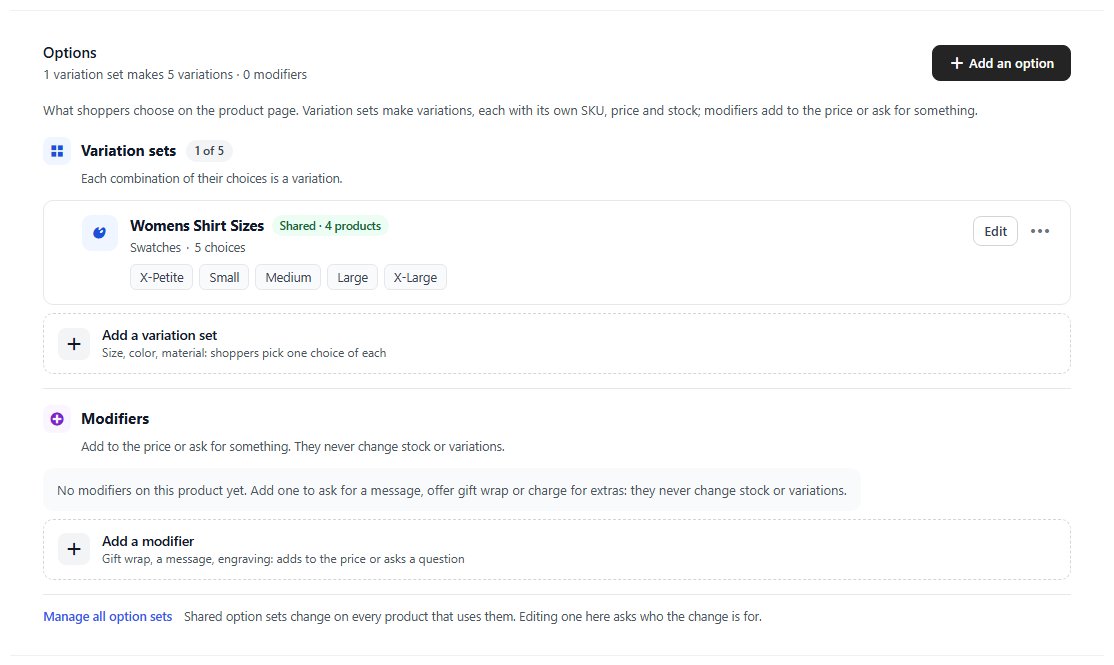
In WP EasyCart PRO, the questions live on the product itself. Open a product, go to Options & variations and press Add a modifier. A modifier asks the shopper for something, or adds to the price. It never touches your stock or your variations, and a product can carry as many as it needs.
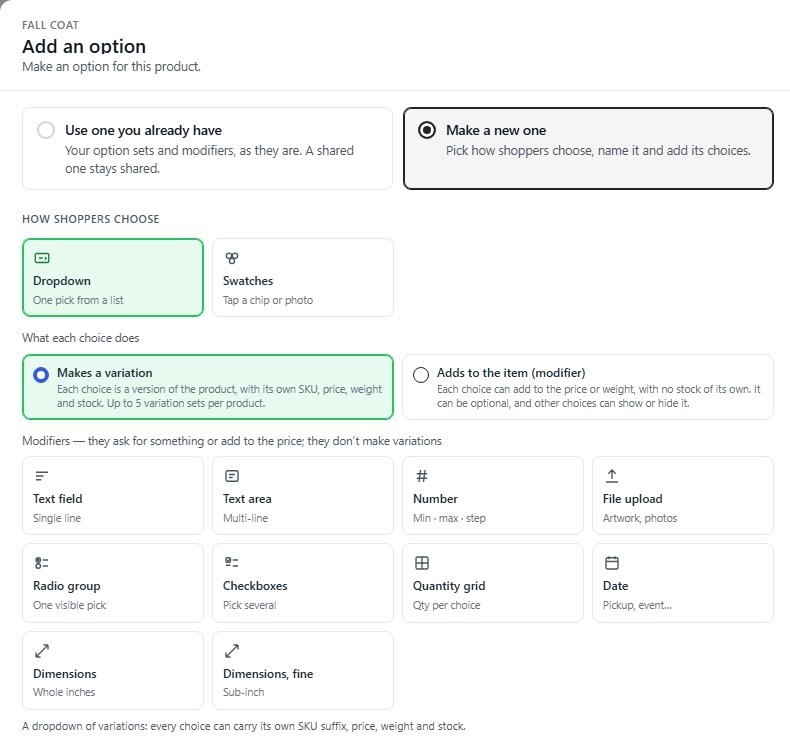
For personalised products, four types do most of the work:
- Text field for a name, a monogram or an engraving.
- Text area for a longer message, such as a card or a dedication.
- File upload for the artwork or the photo.
- Date for the event or the day it is needed, so you know what is due first.
Every answer shows on the cart line, then travels with the order: at checkout, in the order email and on the order screen. Nothing lives in a separate inbox.
Right type. Real file.
Now the part that stops the wrong files. Open the file upload set in EasyCart › Products › Option Sets and find the Rules & validation card. Under Accepted file types, tick what you can actually work with. The types come in four groups:
- Images: JPG, PNG, GIF, WebP, HEIC, TIFF and BMP.
- Documents: PDF, Word, text, spreadsheets and slides.
- Design: PSD, AI and EPS.
- Archives: ZIP, GZ, BZ2, 7Z and RAR.
A print shop might tick PDF, AI and EPS and nothing else. A photo gift store might take only JPG, PNG and HEIC, the format many phones save in. Leave everything unticked and the store uses its default list.
Then the store does three things for you on the product page:
- It tells the shopper. The accepted types show right next to the upload field, and the file picker only offers files of those types.
- It checks what is really inside. Renaming a file does not get it through. The real contents are checked against your list on the server.
- It says no straight away. A file of the wrong type, or one over the size limit, never reaches the cart. The shopper reads why, with the list of accepted types, and can pick another file on the spot.
Some files are refused no matter what you tick: scripts, web pages, SVG files and any name that hides a script extension. An upload box is a door into your server, and this keeps it a small one.
Need vector artwork? Ask for PDF, AI or EPS.
SVG files can carry scripts, so the store never accepts them from shoppers. Designers can export the same artwork as a PDF, AI or EPS file in a few clicks. Say so in the option’s label, for example “Upload your logo ( PDF, AI or EPS )”.
Right case. Right length.
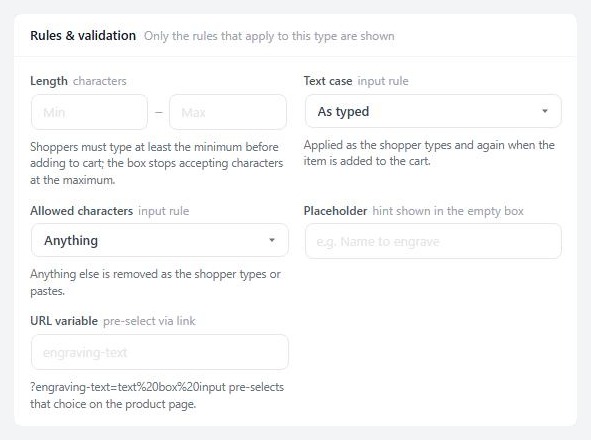
Text goes wrong more quietly than files do. The same Rules & validation card on a text field or text area gives you four ways to stop it:
- Length. Set a minimum and a maximum number of characters. The box stops accepting characters at the maximum, so nobody types twenty letters for a plate that fits ten. Below the minimum, the shopper reads “Please enter at least N characters.”
- Text case. Choose UPPERCASE, lowercase or Title Case and the store changes the text as the shopper types. Monograms come out in capitals every time.
- Allowed characters. Keep it to letters only, letters and spaces, numbers only, letters and numbers, or letters, numbers and spaces. Anything else is removed as the shopper types or pastes. No emoji on a ring.
- Placeholder. A hint in the empty box, such as “Name to engrave”, shows what you expect before they type a thing.
The rules run while the customer types and again when the item goes into the cart, so the text on the order is the text you will make. If longer text costs you more, price the option Per character: every character typed is charged, spaces left out, so a long inscription costs more than three initials.
One more switch matters more than all of them: Shopper must choose before adding to cart. Turn it on for the name, the file and the date, and write your own error message. Nobody checks out with a blank.
Your files. Your staff only.
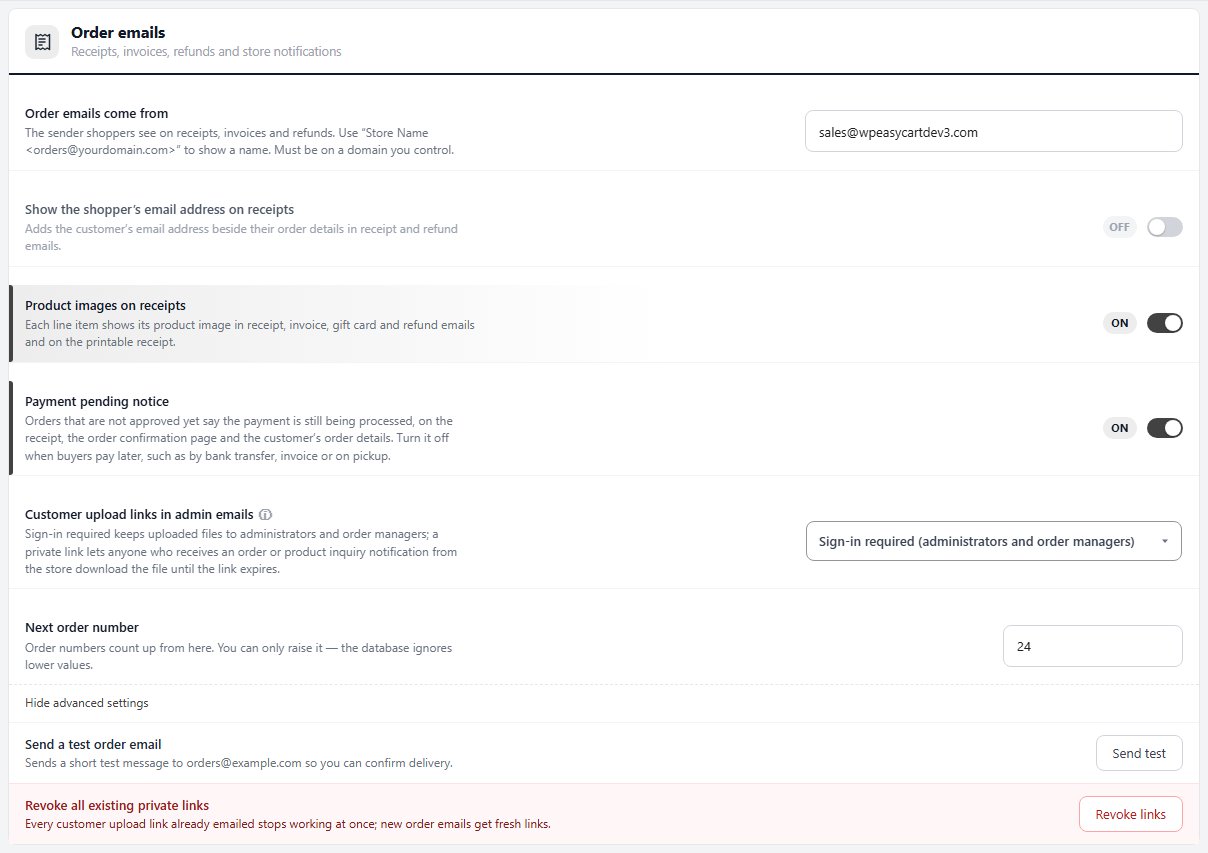
A customer’s photo or a client’s unreleased logo is private. So the store treats it that way. The file reaches you in two places: the admin order email and the order details screen, each with a download link. That link is a secure one. It only works for a signed-in administrator or order manager, and an upload cannot be fetched by guessing its address. The customer’s own receipt never carries the link.
Work with an outside printer or engraver? In Settings › Emails & Documents › Email › Order emails, switch Customer upload links in admin emails to Anyone with the link. Now whoever receives the store’s order notification can download the file without an account on your site. You stay in control in two ways:
- Link expires after. Choose 7, 30 or 90 days. Shortening it also shortens the links already sent.
- Revoke links. One click and every private link already emailed stops working. New order emails get fresh ones.
And if a file ever goes missing, you find out early. The order screen says File not received in place of the download link, so you can email the customer the same day, not the day the order is due. The Email Settings guide covers every setting on this screen.
Good habits. Fewer remakes.
- Say what you need, in the label. “Upload your photo ( JPG or PNG, the original from your phone )” beats “Upload file” every time.
- Show an example. One product photo of a finished piece, with the name in capitals, sets the expectation better than a paragraph of instructions.
- Ask for the date, even when you do not need it. It tells you which orders are gifts with a deadline, and what to make first.
- Keep the page short. Use conditional logic to show the upload only once the shopper ticks “Add my logo”. Fewer fields means fewer abandoned carts.
- Place a test order. Upload a wrong file and type a bad name yourself. See what your customer sees, then read the admin email your team will get.
- Send a proof for expensive pieces. The rules catch the wrong format. Only a person can catch the wrong photo.
The step-by-step guide is How to Add Sizes, Colors and Custom Options. Stuck? Open a request in your account.
★★★★★ Rated 4.5 out of 5 by 200+ store owners on wordpress.org
“This one does it all. Haven’t found a thing we couldn’t easily get done, displayed the way we wanted.”
— tasmaniandevil, wordpress.org review, April 2021
WP EasyCart PRO
Get the right file the first time.
File uploads with type checks, text rules, per-character pricing and secure staff downloads are all part of WP EasyCart PRO, from $119 a year or $14.99 a month, renewing with AutoPay and cancellable any time ( see the plans ). Start a free trial, add an upload to one product and place a test order.