
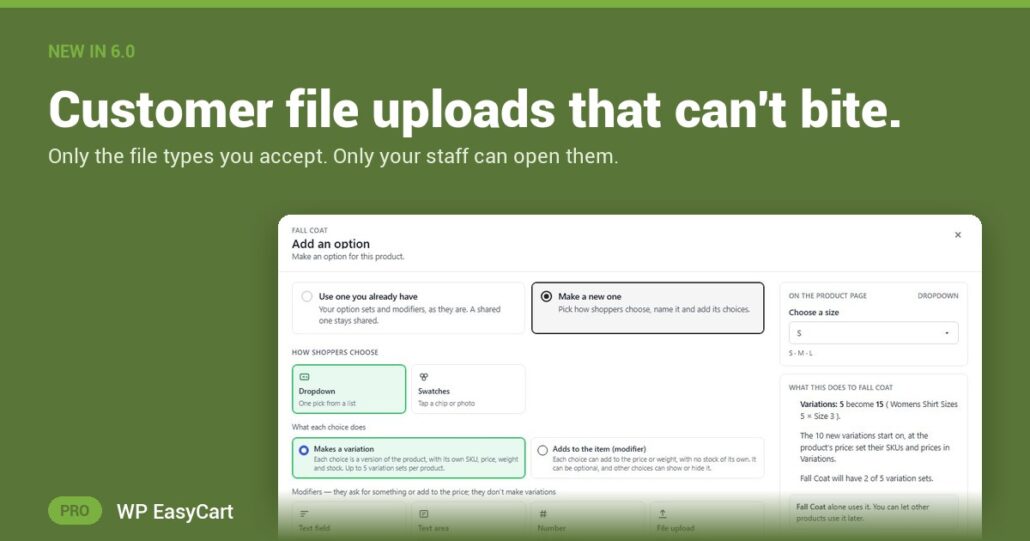
You asked for a logo. Do you know what the customer actually sent? An upload box is an open door into your server, and a file called logo.jpg is not always a picture.
In WP EasyCart 6.0 or greater, the File upload option on a product checks the file before it ever reaches an order.
Pick the types. Check the file. Lock the link.
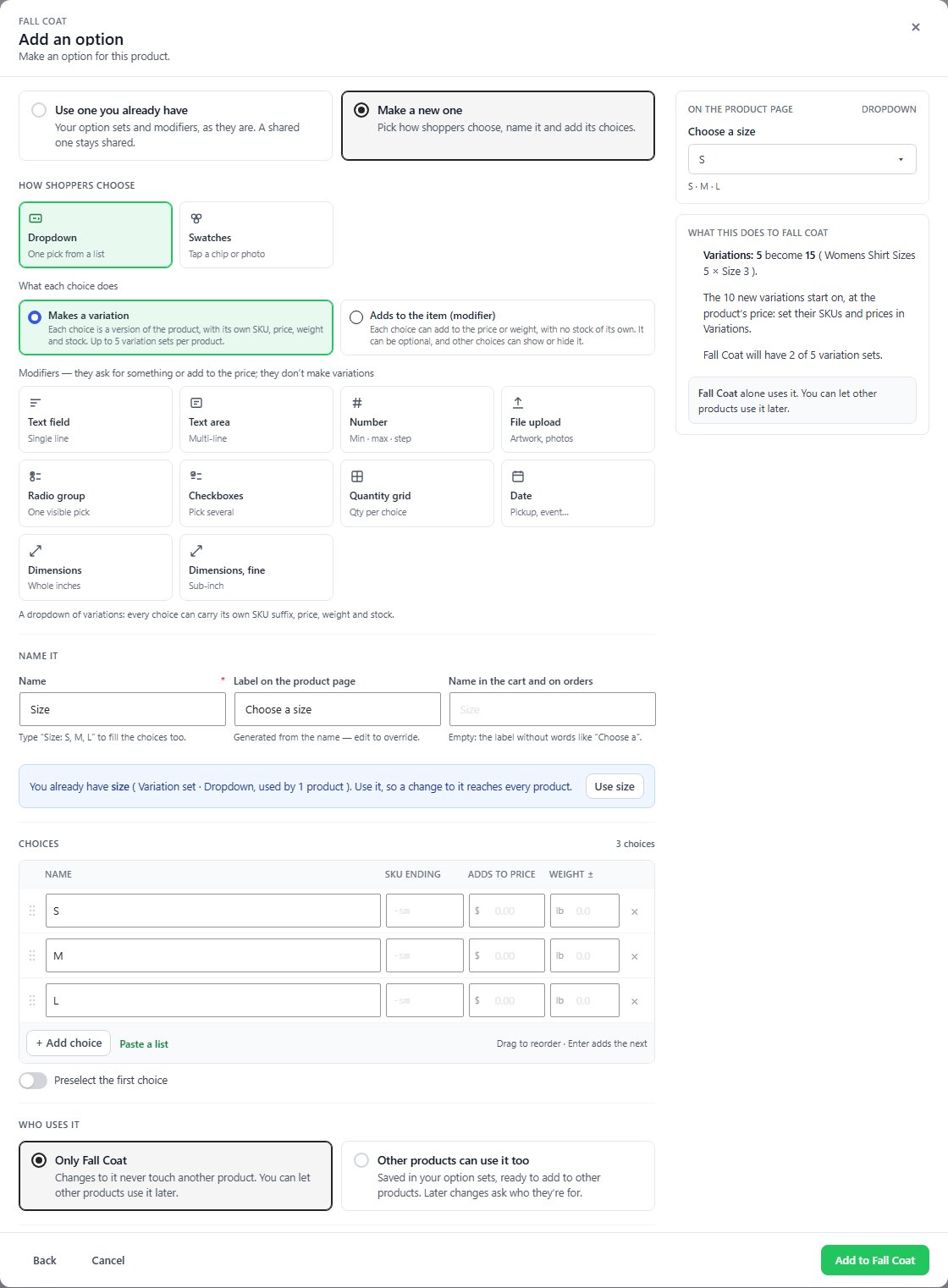
You choose what comes in. Open the option set and, under Rules & validation, tick the file types you accept: images, documents, design files such as PSD, AI and EPS, or archives. The accepted types show next to the upload field, and the file picker only offers those.
The store checks what is really inside. Renaming a file does not get it past the door: the real contents are checked against your list. Scripts, web pages and SVG files are always refused, and so are names that hide a script extension. The shopper sees why straight away, so nobody checks out with a file you cannot use.
Only your staff can open it. The file reaches you in the admin order email and on the order details screen, behind a secure link that needs a signed-in administrator or order manager. Nobody can fetch an upload by guessing its address, and the customer’s receipt never carries the link.
Send artwork on to a printer? Switch Customer upload links in admin emails to a private link. Whoever holds the email can download the file until the link expires, and one click revokes every link already sent.
No upload plugin, no form plugin, no shared folder. The file arrives with the order, next to the payment, the shipping and the tax, in one plugin.
Where: WP Admin › EasyCart › Products › Option Sets › open the file upload set › Rules & validation. The link setting is in Settings › Emails & Documents › Email. Plan: PRO or Premium. See every product design feature, or read the options how-to guide.
WP EasyCart PRO
Take the artwork. Skip the risk.
The free trial unlocks PRO on your own site. Add a file upload to one product and place a test order. Rated 4.5 out of 5 by 200+ store owners on wordpress.org.