

Your store makes the sale. Then somebody makes it again. Open Xero, find the contact, raise an invoice, key in each line, pick the tax rate, record the payment. Next week, the credit note for the refund.
That second sale earns you nothing. The new Xero extension for WP EasyCart Premium makes it for you. Every order arrives in Xero as an invoice, with its payments, refunds and the exact tax your store charged. And when a customer pays an invoice in Xero, your store hears about it.
Less keying. More growing.
Xero is the accounting home of small business in the UK, Australia and New Zealand, and plenty of stores everywhere else. It is brilliant at the books. What it cannot do on its own is know what your website sold today.
So the gap gets filled by hand. That works at ten orders a week. At a hundred, it is a weekly chore. In a busy season, it falls behind just when you need your numbers most. And every keyed-in order is a chance for a wrong VAT rate, a missed refund or a total that will not reconcile with the bank.
Close that gap and the whole business runs better. Your profit and loss is current. Your VAT or GST return is built from the real figures. Your accountant spends their time advising you, not chasing pennies. And you decide what to restock, when to run a sale or whether to hire on numbers you trust.
Every order. An invoice.
Here is what happens in Xero as your store does business:
- A new order becomes an invoice to the customer’s contact, with its lines, discounts, shipping, fees, tip, duty and tax. It arrives approved, or as a draft if you prefer to approve each one.
- Paid at checkout? The payment is recorded on the invoice, into the account you choose for Stripe, Square, PayPal or whichever service took the money. The invoice shows as paid.
- Not paid yet? Bank transfer and pay-by-invoice orders wait in Xero as open invoices, ready for your usual reminders.
- Refunded? A credit note, set against anything still due and paid back from the account the money went into.
- Changed or cancelled? The invoice is updated to match. Cancelled or deleted orders are voided.
- Gift cards. Cards sold and redeemed go through a gift card liability account, the way your accountant expects.
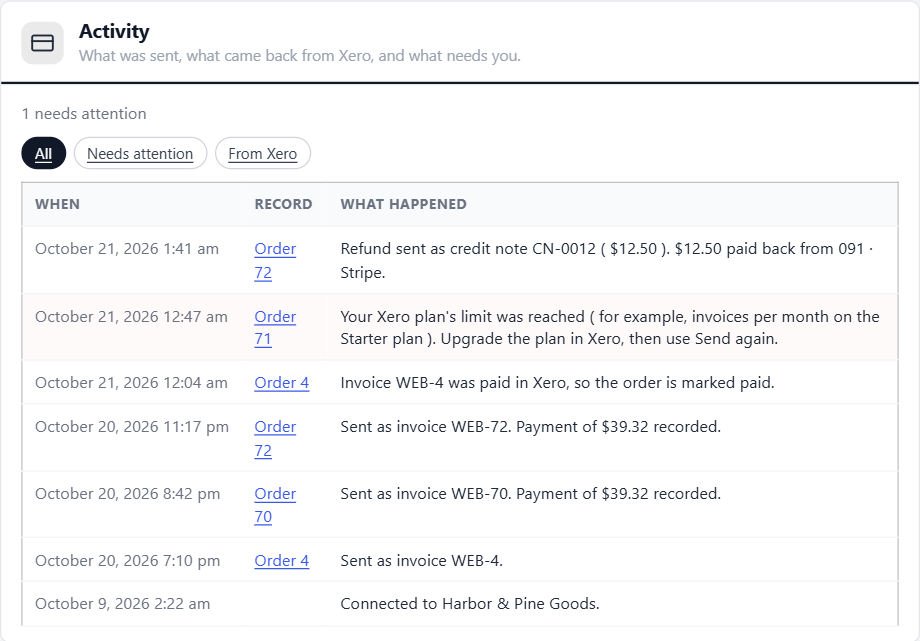
Customers become Xero contacts, matched by their customer number, then by email, or made the first time they buy. Guests get a contact each, or all go to one shared contact such as Web sales.
Each invoice carries your order number with WEB- in front by default ( WEB-1042 ), so web sales stand apart from the invoices you raise yourself. Its reference is always the order number, with the PO number when there is one.
VAT and GST. To the penny.
Tax is where store-to-books sync usually goes wrong. Xero works out tax itself from each line’s rate, and takes no tax figure from outside. So two systems can easily land a few cents apart.
This extension does the maths Xero’s way first, so the invoice comes out at the tax your order actually charged.
- VAT and GST. Each line gets the Xero tax rate that matches what the order charged. Prices that include VAT send as tax-inclusive invoices, so the totals match what the customer paid.
- Canada. Pick a rate for GST, PST, GST and PST, and HST.
- US sales tax. Sent as its own line to a liability account such as Sales Tax Payable, because US rates change by address.
- Rounding. A cent or two of difference goes to Xero’s Rounding account. Anything bigger holds the order and names both totals, so a wrong rate never slips through.
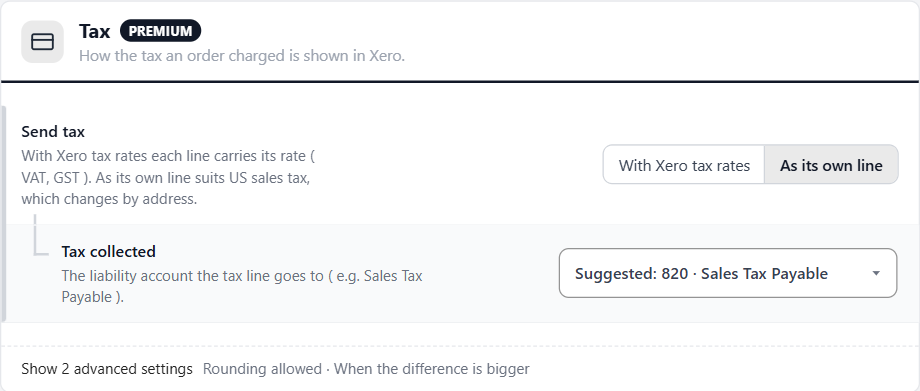
The right choice for your organisation’s country is suggested when you connect. Change it only if your accountant asks you to.
Paid in Xero? Paid in your store.
Trade customers pay invoices. Bank transfers land in your bank feed. That money shows up in Xero first, and normally somebody then has to go and update the order.
Not any more. When an invoice the store sent is paid in Xero, whether you record the payment, match it from the bank feed or the customer pays online, the order is marked paid. Its stock is taken, the customer gets their receipt and the order’s timeline says it was paid in Xero.
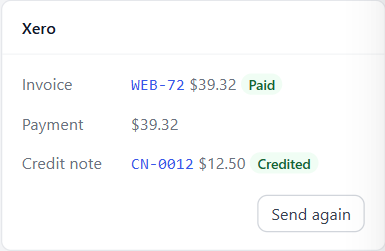
With the WP EasyCart app connection, Xero tells your store as it happens. The store also checks a few times a day, in case a notice ever goes missing. Every order screen shows a Xero card with what was sent. If an order is held, the card says why and links to the setting that fixes it.
Four steps. One afternoon.
- Install it. Go to EasyCart › Extensions and install Xero. It comes with your Premium plan.
- Connect. Press Connect to Xero, sign in, choose your organisation and press Allow access. You sign in on Xero’s own page, so your store never sees your Xero password.
- Check the suggestions. Accounts, tax rates and payment accounts are suggested from your own chart of accounts. Look them over, ideally with your bookkeeper.
- Switch on sending. Turn on Send orders to Xero. Orders from that day on go as they happen.
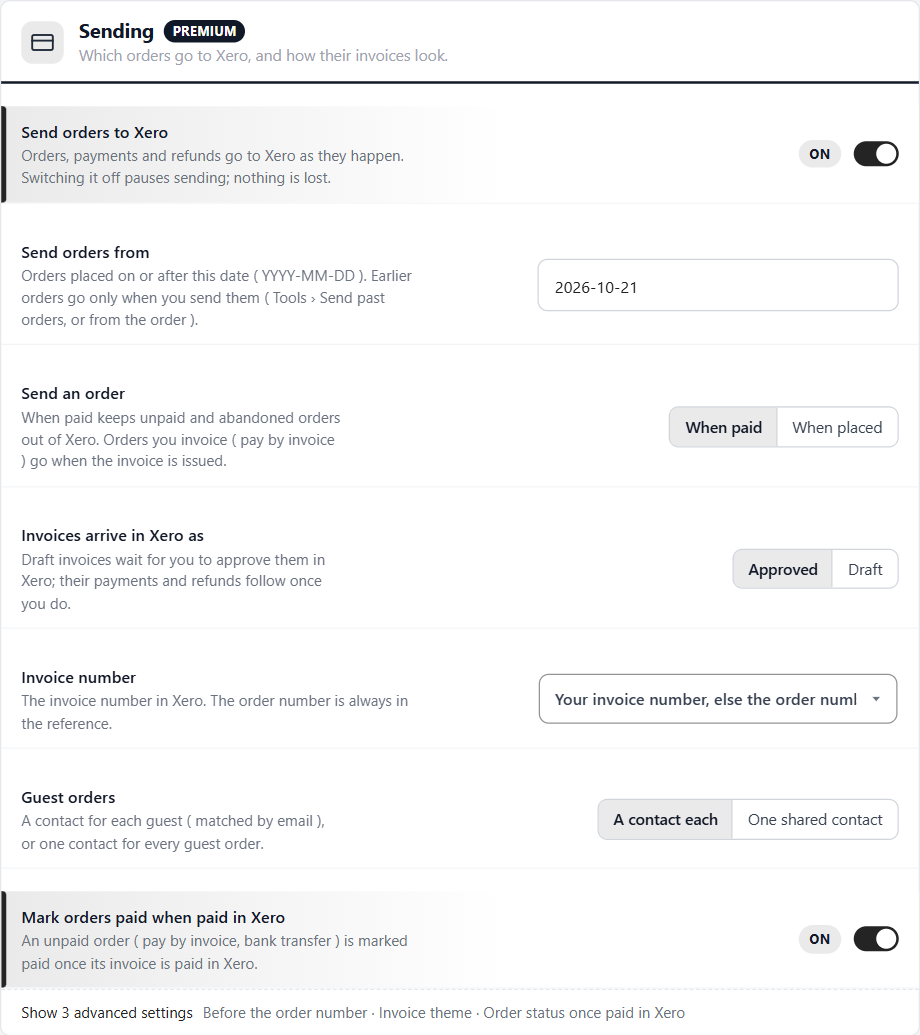
Nothing is sent until you flip that switch, so take your time. By default an order goes once it is paid, which keeps abandoned and unpaid orders out of your books. Run your own Xero app or a Xero custom connection? The Xero guide shows how to connect with those instead.
Already keyed some orders in by hand?
Set Send orders from to the day after the last sale you entered yourself. Then use Tools › Send past orders for anything since, up to 500 at a time, so nothing lands in Xero twice.
Payouts that match the bank.
Stripe, Square and PayPal pay you in batches, not order by order. That is why reconciling a web store is so painful. Under Payments, choose where each service’s money goes:
- A clearing account for each payment service, such as Stripe or Square Clearing. Each payout from that account then matches one line on your bank statement. If you already have one, it is suggested.
- Your bank account for bank transfers and pay-by-invoice orders.
- Refunds paid by hand for money you gave back outside the payment service.
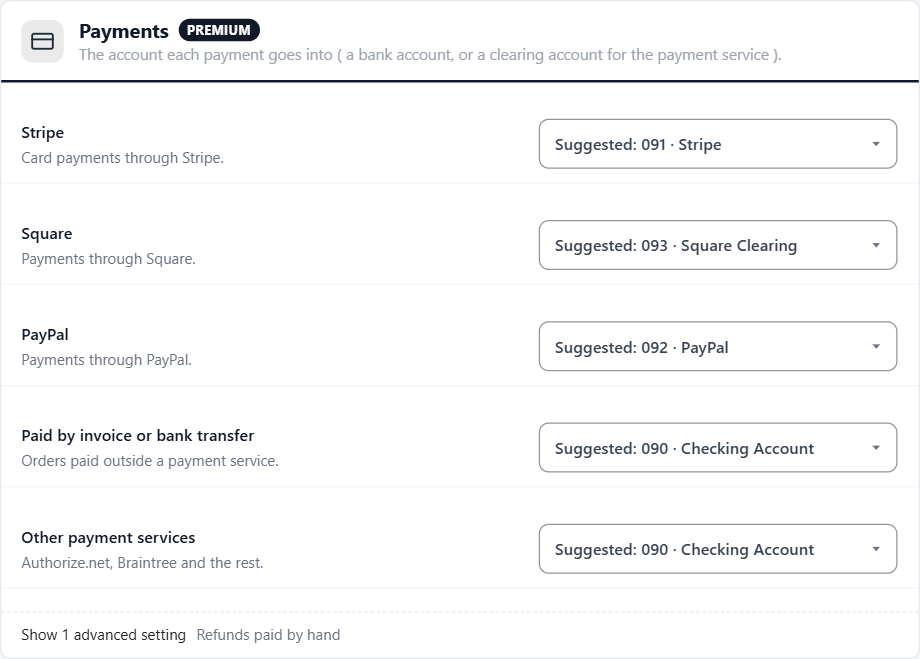
Any account other than a bank account needs Enable payments to this account switched on in your Xero chart of accounts. If it is not, the order is held with exactly that message.
Good to know. Before you start.
- Check your Xero plan. Some Xero plans limit how many invoices you can send a month, and every store order becomes an invoice. Busy store? Make sure your plan keeps up.
- Currency. Your store’s currency must be the organisation’s base currency, or one added in Xero under Settings › Currencies ( a Xero plan with multi-currency ).
- One organisation per store. A store sends to one Xero organisation at a time.
- Stock stays in your store. Products are lines on your sales account, not Xero inventory items.
- Staging is safe. A copy of your site never sends to Xero, so testing a redesign will not double your sales.
- Private details stay private. Card numbers, passwords and admin notes are never sent.
Keep your books in QuickBooks Online instead? There is a QuickBooks Online extension too. Want orders in Google Sheets, Slack or your CRM as well? Try the new Zapier extension. Both come with Premium.
Clean books. Simple habits.
- Bring your bookkeeper in early. Ten minutes on the suggested accounts and tax rates saves hours at year end.
- Add every rate you charge. A tax rate the store charges but Xero does not have holds the order. Add it in Xero, then press Refresh accounts and tax rates.
- Glance at Needs attention weekly. Held orders always say why. Fix the setting, save, and every order that waited goes through.
- Use a lock date. Xero takes nothing dated before it, so last quarter’s VAT return stays put.
- Reconcile payouts, not orders. Match each Stripe, Square or PayPal payout to your bank, and the sales inside it are already there.
Every setting and message is explained in the Xero guide. Questions about connecting? Our team is available through your account.
★★★★★ Rated 4.5 out of 5 by 200+ store owners on wordpress.org
“It really does work flawlessly, has tons of options, and is easy to use for people like myself with minimal programming skills.”
— flowtechsys, wordpress.org review, April 2023
New in WP EasyCart Premium
Your store and your accounts, in step.
Xero comes with WP EasyCart Premium, with every Premium extension and the store apps: $179 a year or $22.99 a month with AutoPay, cancel any time. Long-time customers qualify for a discount on their first AutoPay year in My Account.