
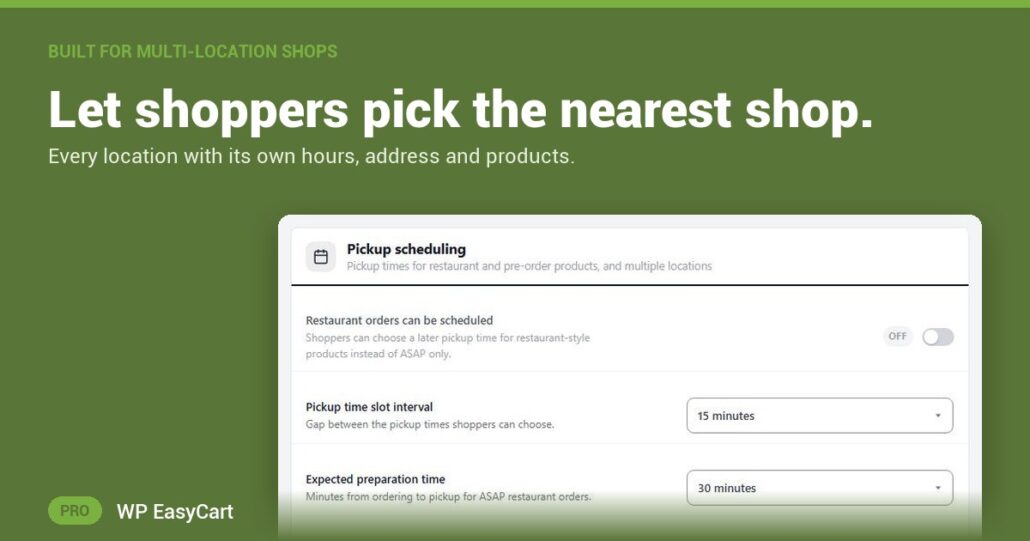
You have two cafés, or a bakery and a market stall. One website has to send each order to the right counter, and the customer has to know which door to walk through.
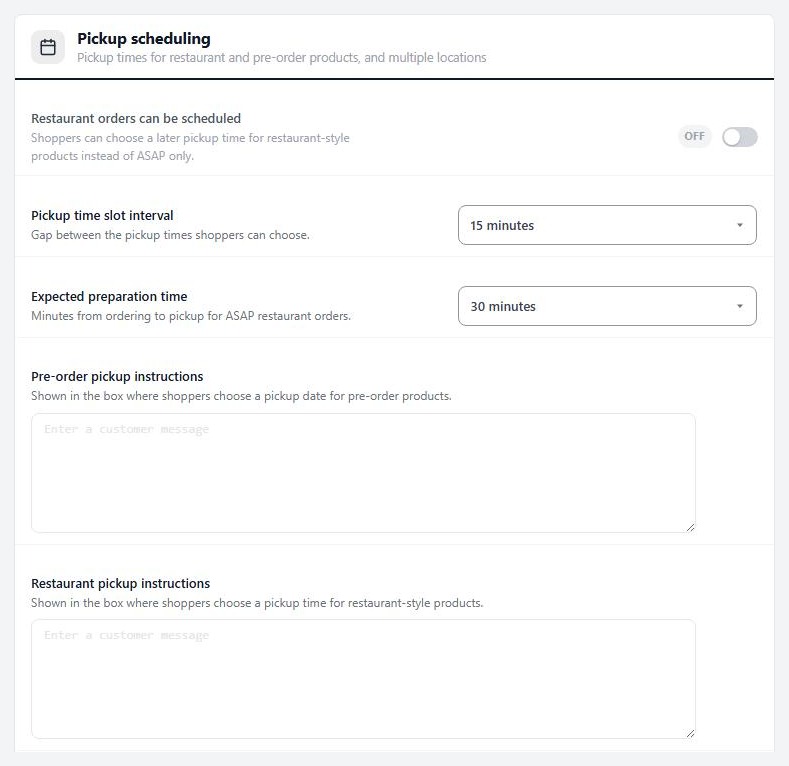
WP EasyCart PRO handles it from Settings › Schedule & locations. Open the Locations tab and press Add location for each place you hand orders over. Give it a name shoppers recognise, the full address, contact details and a pickup note such as which door or where to park. Then switch on Multiple pickup locations in Settings › Checkout and shoppers choose their location at checkout.
Nearest shop. Its own hours. Its own shelf.
Turn on Ask shoppers to choose a location when the store loads and visitors pick a shop on arrival, with distance in miles or kilometres. Add a Google Maps API key and each location finds its own coordinates from the address. With Separate schedule per location, the downtown café can close at three while the market stall runs till six.
Not every shop stocks everything. Products not stocked at the chosen location can show as normal, hide, or show with purchase turned off. On your side, the order’s Pickup card shows the location, date and time, so nobody packs the order at the wrong shop.
Where: WP Admin › EasyCart › Settings › Schedule & locations › Locations, and Settings › Checkout › Pickup scheduling. Plan: PRO or Premium. Read the pickup and scheduling guide from schedule to first test order.
WP EasyCart PRO
Every shop. One website.
The free trial unlocks PRO on your own site. Add your locations, set their hours and place a test pickup order. Pickup, payments and shipping in one plugin. Rated 4.5 out of 5 by 200+ store owners on wordpress.org.