
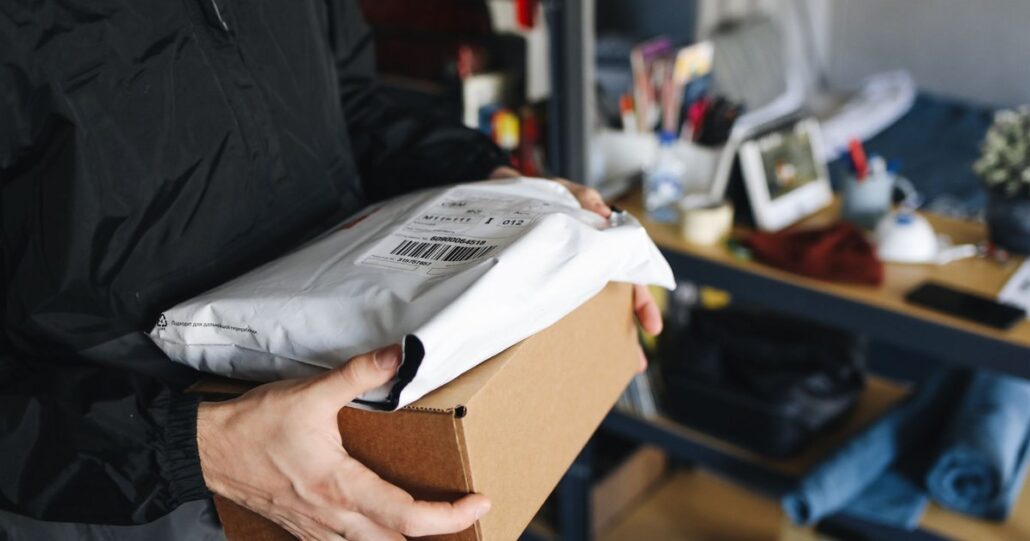
Your customers never see your admin. They see your paperwork. The receipt that lands after they pay. The email that says their order is on its way. The slip that falls out of the box. For a lot of shoppers, those three things are your brand.
Get them right and a small store looks like a serious business. Get them wrong and you look careless, or worse: a gift arrives with the price printed on it, a wholesale buyer gets a receipt their accountant can not use, or a drop-shipped parcel shows someone else’s prices. WP EasyCart puts all of it in one place, so every order goes out looking the way you want.
Paperwork sells. Quietly.
Order documents feel like admin. They are really marketing. A clean receipt builds trust at the exact moment a customer has just handed over money. A shipped email with a tracking number heads off a “where is my order?” message before it is written. A tidy packing slip makes the unboxing feel cared for, and cared-for customers come back.
The cost of getting it wrong is real, too. Every confused customer is a support email. Every invoice you retype by hand for a business buyer is time you are not selling. And every gift that shows the price is a moment your customer remembers for the wrong reason.
Most stores never touch their documents because, for years, changing them meant editing a template file. Not any more.
One screen. Every document.
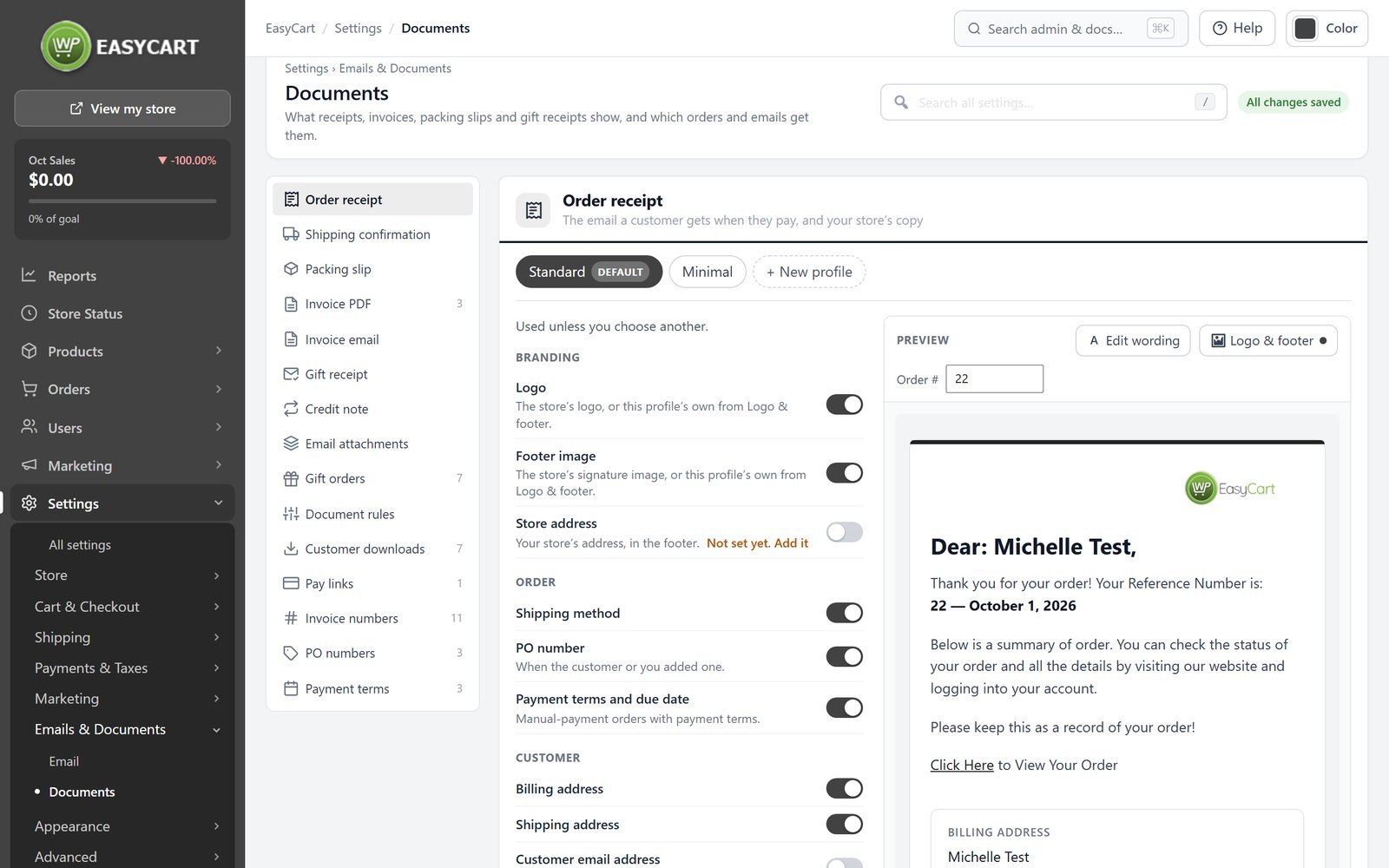
Go to Settings › Emails & Documents › Documents. Down the left are your documents: the Order receipt, the Shipping confirmation and the Packing slip. Pick one and you get a list of simple switches, grouped by what they control.
- Branding. Your logo, a footer image and your store address.
- Order. Order number, date, and the shipping method, carrier and tracking number.
- Customer. Billing address, shipping address, phone numbers and email address.
- Items. Product images, titles, SKUs and product options.
- Prices. Show prices or hide them, then pick which totals appear.
- Notes. The customer’s order notes and their answers to your own checkout questions.
The best part sits on the right. The Preview is built from one of your own orders. Type any order number into the Order # box and see exactly what that customer would get. Flip a switch and the preview changes. No test orders, no guessing.
Two more buttons sit above the preview. Edit wording changes the words each document prints, such as the greeting and the thank-you line. Logo & footer sets the images. All of this is in the free edition. Read the Document Settings guide.
Start with the packing slip
It is the document most stores never look at. Open it, type in a recent order number and read it as if you were the customer opening the box. Then switch off anything they do not need.
One order. The right version.
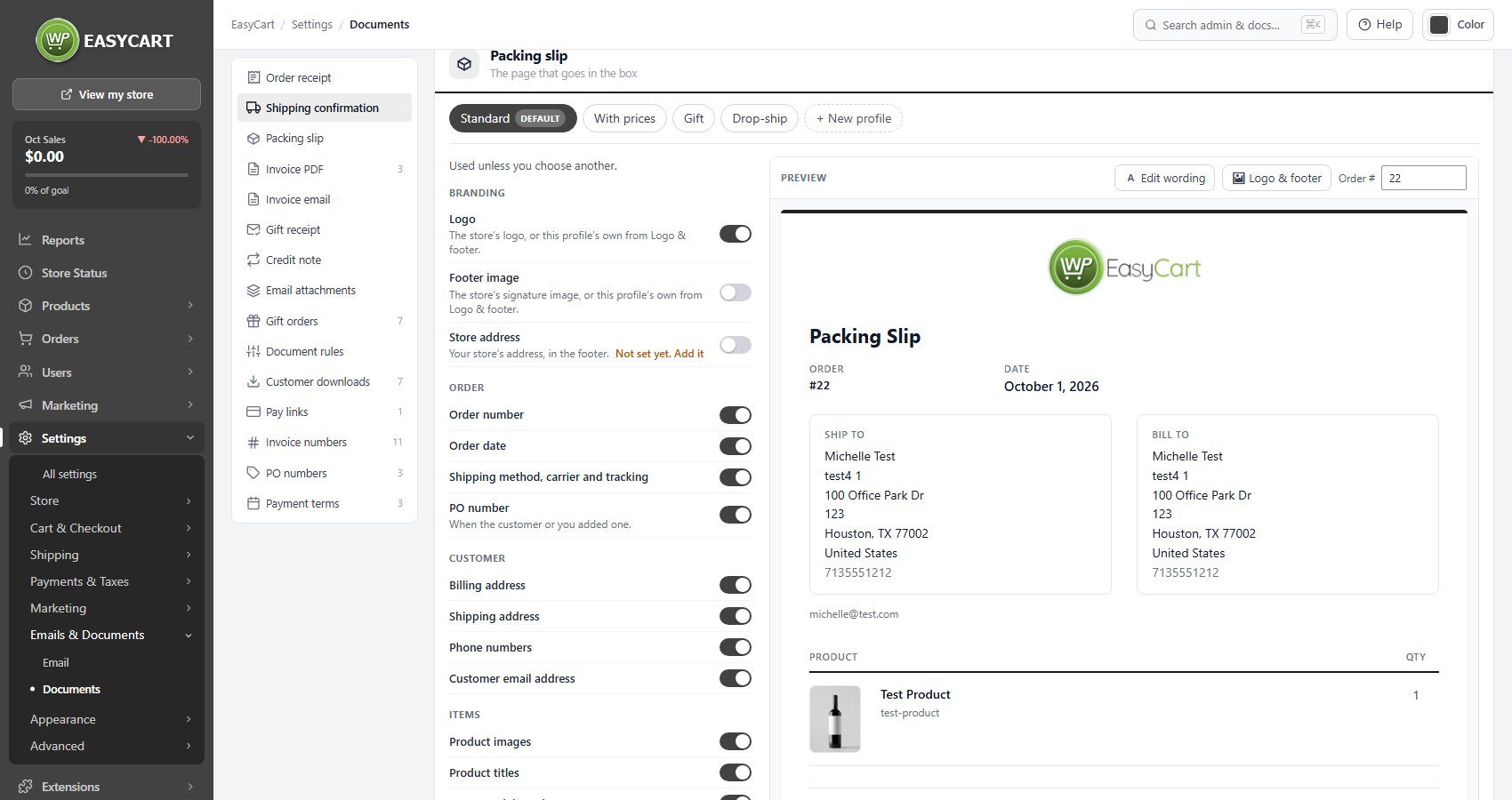
One version of each document is not always enough. A gift needs a packing slip with no prices. A drop-shipped order needs your branding and SKUs, but no images. A business customer wants an invoice, not a chatty receipt.
That is what profiles are for. Each document keeps several named versions, shown as tabs above its switches. Every store gets the Standard profile of each document. With PRO, you also get ready-made profiles to start from:
- Order receipt: Minimal. No product images or SKUs.
- Shipping confirmation: Gift. No prices and no billing address.
- Packing slip: With prices, Gift and Drop-ship. Every total, no prices or contact details, or your branding and SKUs with no prices or images.
- Invoice PDF: Receipt, Bookkeeping and B2B. A paid receipt, a clean invoice, or one with the invoice number, PO number, payment terms and VAT number.
Press + New profile to make your own, and give any profile its own logo and footer image. That is handy when you ship for a partner or run two brands from one store. Profiles are PRO. See how document profiles work.
Real invoices. Attached.
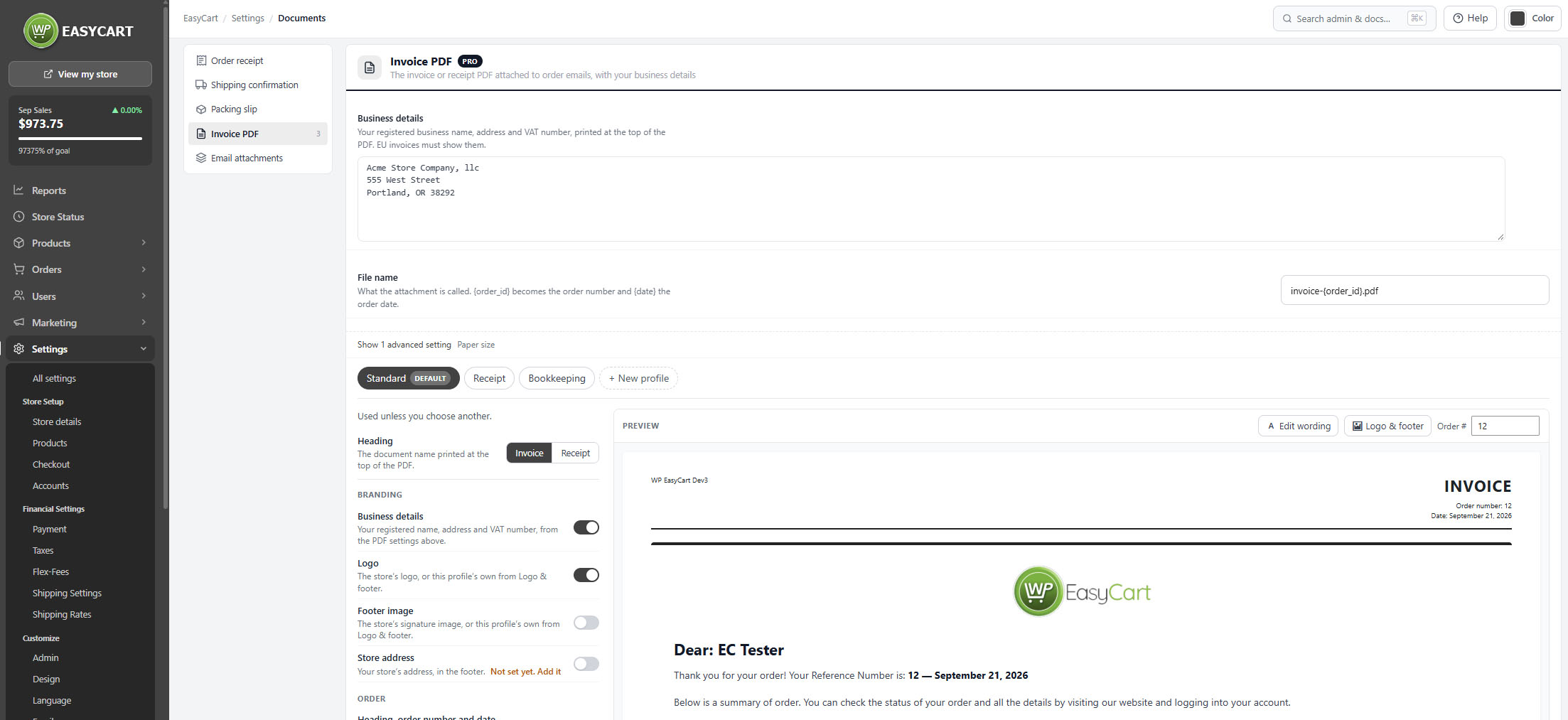
Plenty of customers need a proper document, not just an email. Businesses need an invoice for their books. Buyers in Europe expect one with the seller’s registered details on it. The Invoice PDF covers both.
- Open Settings › Documents › Invoice PDF.
- Enter your Business details: your registered name, address and VAT number.
- Set the File name. The order number and date can go into it automatically.
- Choose A4 or Letter paper under the advanced setting.
- Pick a profile, check the preview, and choose Invoice or Receipt as the heading.
- Open Email attachments and choose which emails carry the Invoice PDF or the packing slip PDF, and with which profile.
From then on, the PDF goes out with your order emails on its own, and you can download it from any order. The Invoice PDF and email attachments are PRO.
Resend anything. From one window.
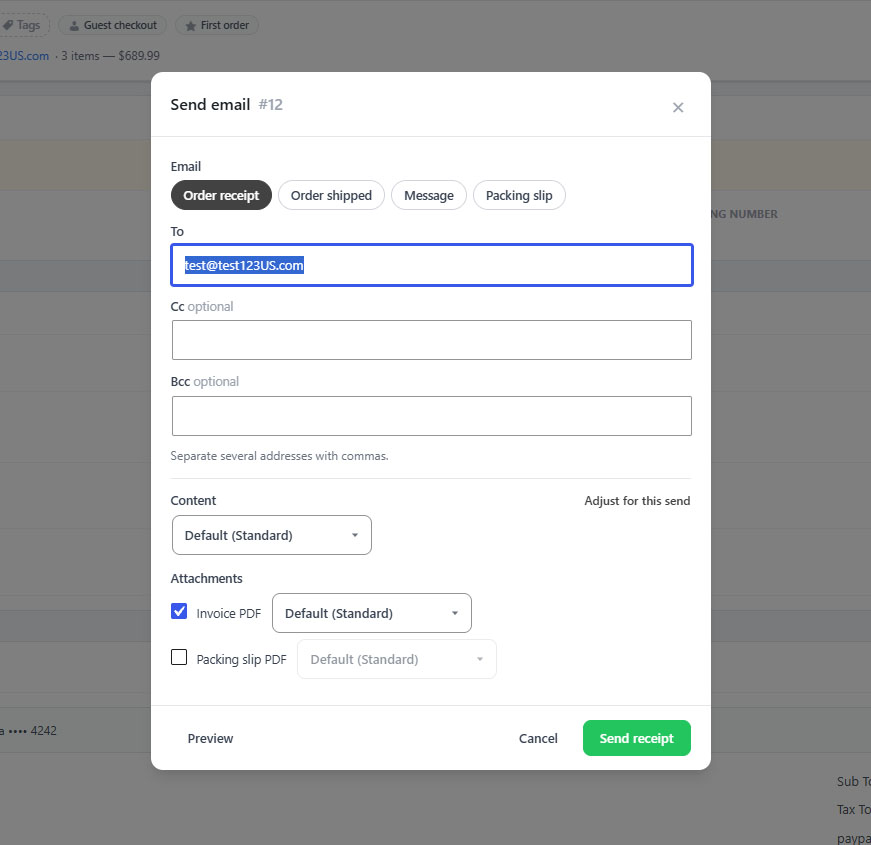
Customers lose emails. Accountants ask for copies. Warehouses want the slip again. Every order now has one Send Email window for all of it.
- Pick the email. Send the order receipt or the order shipped email again in the free edition.
- Choose who gets it. Fill in To, Cc and Bcc, starting from the order’s current email address.
- Preview first. See exactly what will go out before you press send.
- Change it for this one send. With PRO, pick a different profile, add or remove PDF attachments, write your own message, or email the packing slip with only the items in this box.
Every send is recorded on the order, so you can always see what went out and what was attached. See how to send order documents.
Set the rules. Then forget them.
Choosing a profile by hand works for the odd order. It does not work at volume. Document rules pick the right receipt, packing slip and attachments for each order automatically, by customer role, payment, delivery, order total or country.
Wholesale customers get the B2B invoice. Gift orders get the gift packing slip. Overseas orders get the PDF. You set it up once, and every order after that takes care of itself. Document rules are PRO. Selling to trade customers on terms? Invoice trade customers on Net 30.
Small touches. Big impression.
The settings do the heavy lifting. These habits make the paperwork work harder:
- Say thank you like you mean it. Use Edit wording to make the receipt sound like you, not like a template. One warm line beats three formal ones.
- Put the next step on the slip. A footer image can carry a discount for the next order, your social handle, or how to reach you about returns.
- Keep the slip lean. Pickers need SKUs and options, not marketing. Customers need to see that everything is in the box.
- Check one real order a month. Type a recent order number into the preview and read it fresh. Small mistakes, like an old address, hide in plain sight.
- Make sure it arrives. A perfect receipt is wasted in a spam folder. Fix order emails going to spam.
Want the whole setup in order? Follow the order emails and documents how-to. Documents are one part of how WP EasyCart handles orders in your WordPress ecommerce store. See every order and fulfillment feature. Questions? Our team is available through your account.
★★★★★ Rated 4.5 out of 5 by 200+ store owners on wordpress.org
“This one does it all. Haven’t found a thing we couldn’t easily get done, displayed the way we wanted.”
— tasmaniandevil, wordpress.org review, April 2021
Your paperwork. Your way.
The Documents screen and live preview are free in WP EasyCart. The free trial unlocks PRO on your own store, so you can try profiles, PDF invoices and document rules before you decide.