

Every minute you spend stuck is a minute you are not selling. When a setting will not behave, or you are not sure how to launch a new kind of product, the fastest fix is a clear answer you can find in seconds. Not a forum thread from 2017. Not a support ticket and a day of waiting.
So we rewrote the WP EasyCart documentation from the ground up for 6.0. New writing, new screenshots, a new design, and a new way to find what you need, right from inside your store.
Less stuck. More selling.
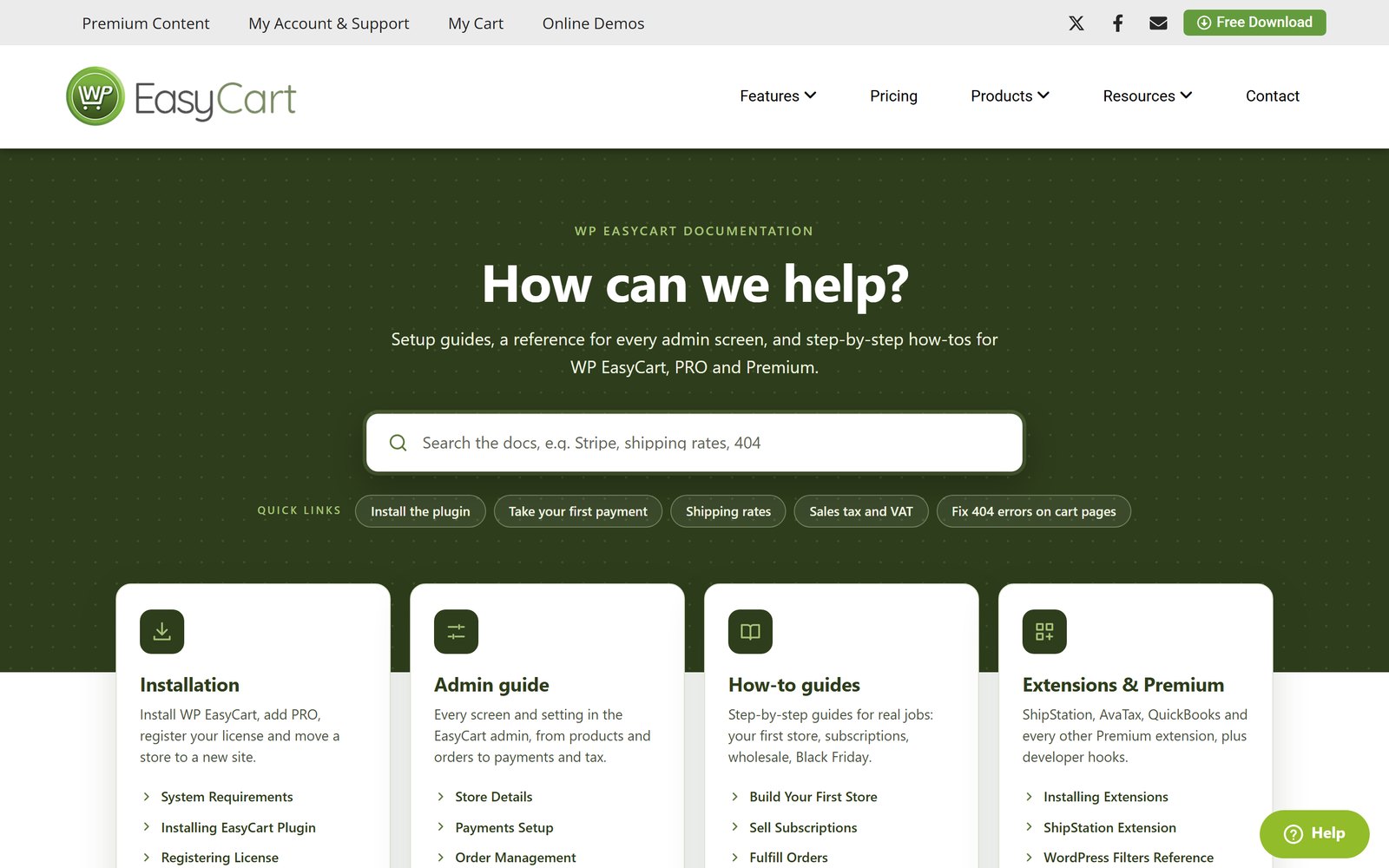
Small businesses grow when the owner spends time on products, customers and marketing. Not on puzzling over a shipping rate or a payment setting. Good documentation is the quiet tool that makes that possible. It turns “I wonder how” into “done” before your coffee goes cold.
It also means you can say yes to more. Wholesale customers, subscriptions, gift cards, a holiday sale, a new payment method: each one is easier to try when the steps are written down and you can follow them at your own pace.
Here is what the new docs give you:
- 175 guides for WP EasyCart 6.0 and greater, from installation to developer hooks.
- A page for every settings screen, laid out in the same order as the menu in your admin.
- More than 50 step-by-step how-tos, grouped by the job you are trying to do.
- Search from your admin, so the answer is one shortcut away while you work.
The docs are free and cover every edition: the free plugin, PRO and Premium. Browse the docs.
Pick a job. Follow the steps.
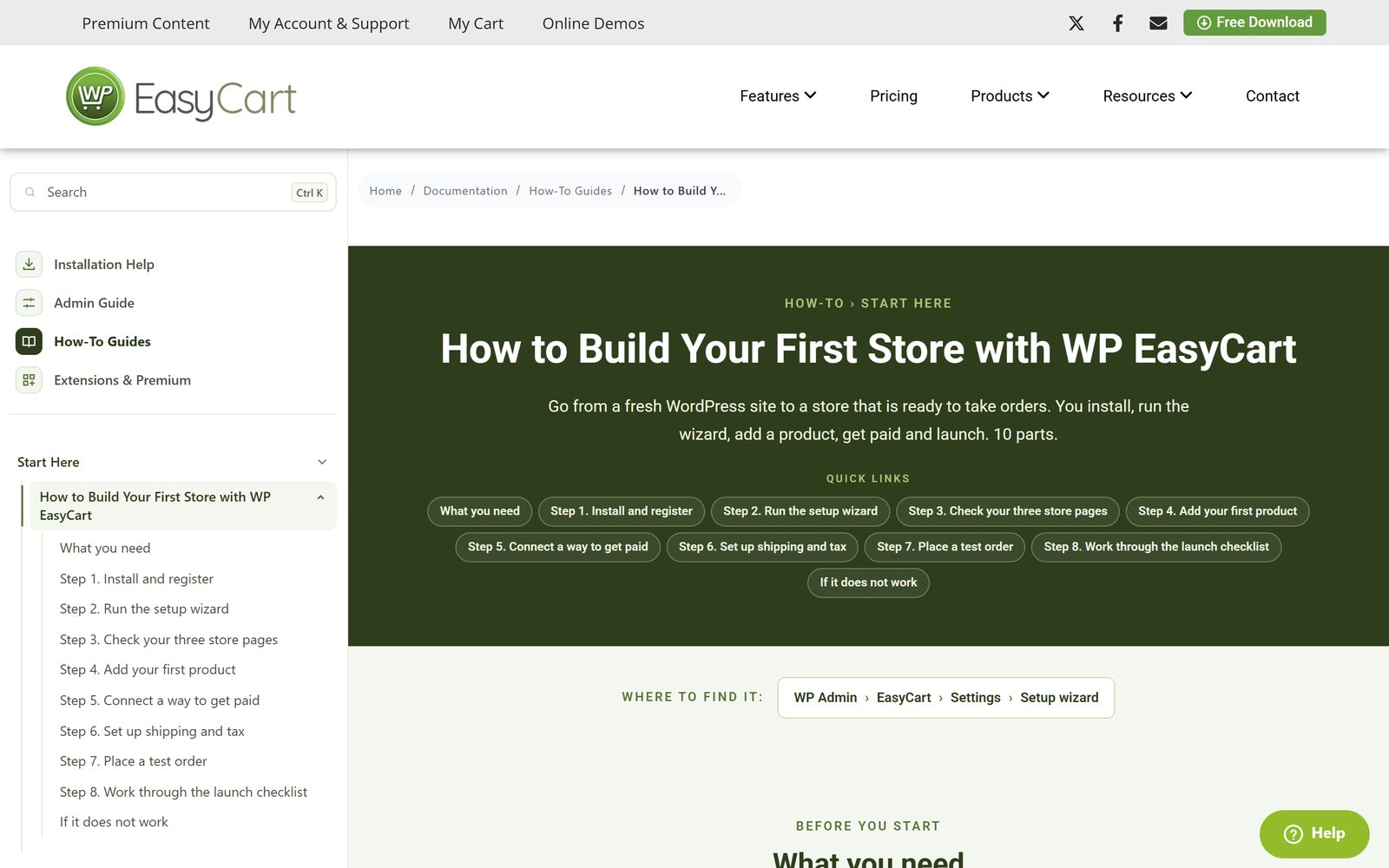
Most store owners do not think in settings screens. They think in jobs: “I want to sell subscriptions,” or “I need to stop overselling.” The how-to guides are organised the same way. Each one walks you through the job from start to finish, with quick links to every step at the top and the exact menu path to each screen.
There are nine groups. Pick the one that matches what you are doing today:
- Start Here: build your first store, take your first payment, set up shipping that does not lose money, sales tax and VAT, and moving from WooCommerce.
- Product Setup: sizes, colors and custom options, inventory without overselling, organising your catalog and importing from a CSV.
- Checkout, Orders and Customers: fulfilling orders, refunds and credit notes, phone orders with a pay link, and pickup, delivery scheduling and restaurant ordering.
- Design Your Store: which design method to use, then Gutenberg blocks, shortcodes, Divi or a full set of Elementor guides.
- Marketing and Growth: coupons and automatic discounts, abandoned carts, a Black Friday plan, product reviews and email marketing.
- Wholesale and B2B: wholesale for approved customers, volume pricing and Net 30 invoicing.
- Selling Special Products: subscriptions, downloads, gift cards, memberships, donations, and selling by quote or preorder.
- Tracking and Data: GA4 purchase tracking, Google Ads and Meta conversions, Google and AI search, and finding your best products and customers.
- Fix Common Problems: emails going to spam, payment errors, 404s on cart pages, caching and card-testing bots.
Some jobs use PRO or Premium features, such as wholesale pricing, Elementor store design and the extensions. The guides cover them too, so you can see exactly how a feature works before you decide. The free trial lets you follow along on your own store.
Every screen. Explained.
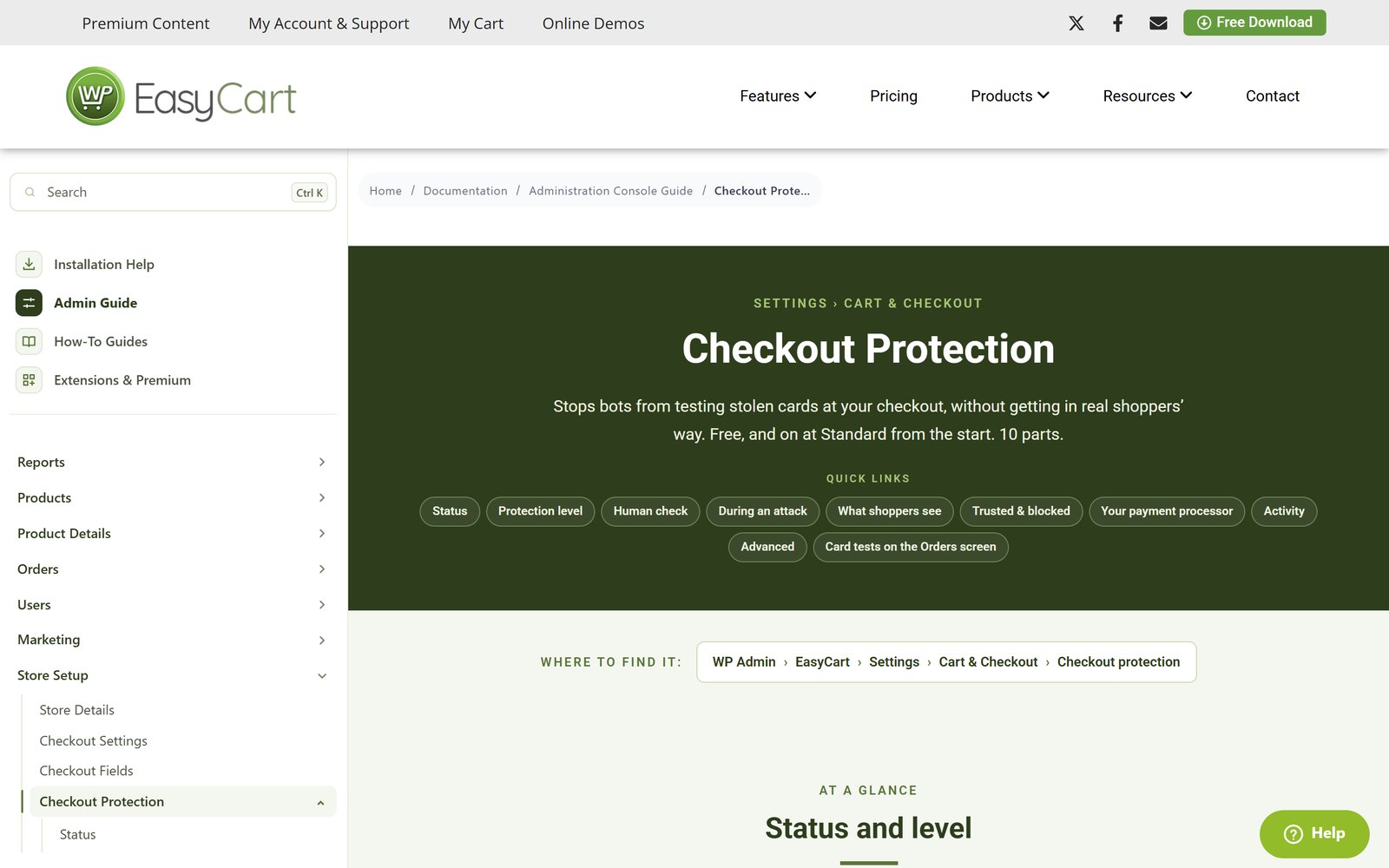
Sometimes you do not need a walkthrough. You are looking at one setting and want to know what it does. That is what the admin guide is for. It has 91 pages, one for every screen in the store admin, in the same order as your Admin Console menu: Reports, Products, Orders, Users, Marketing, Settings and Diagnostics.
Every page follows the same pattern, so you always know where to look:
- One line on what the screen is for, so you know you are in the right place.
- Where to find it, with the full menu path, such as Settings › Cart & Checkout › Checkout protection.
- Quick links to each part of the screen, so you can jump straight to the setting you are on.
- Fresh screenshots of the 6.0 admin, so what you read matches what you see.
A few good places to start: Store Details, Payments Setup, Shipping Rates, Email Settings and the product editor tabs, starting with General Details.
Running Premium? The extension guides cover ShipStation, Stamps.com, Shippo, AvaTax, QuickBooks Desktop, Facebook & Instagram and the rest, each with its own setup steps.
Search from your store. Not a new tab.
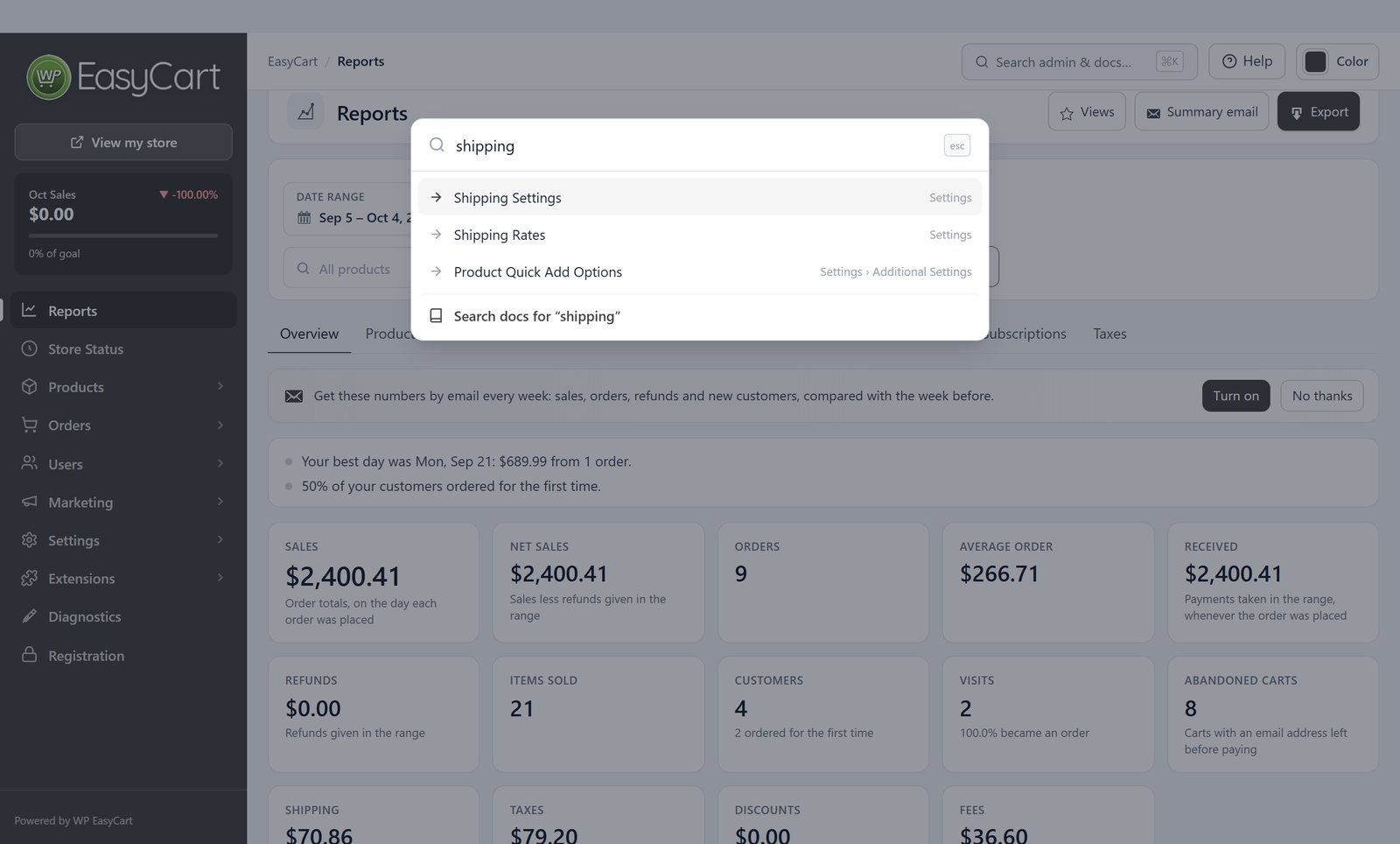
The best answer is the one you do not have to go looking for. At the top of every screen in the WP EasyCart 6.0 admin there is a Search admin & docs box. It is free, in every edition.
- Click the box, or press Ctrl + K (Cmd + K on a Mac) from any EasyCart screen.
- Start typing what you need, such as “shipping” or “tax”.
- Pick a matching page or setting to jump straight to it in your admin.
- Or choose the last row, Search docs for, to open matching guides in a new tab.
Use it as a shortcut too. Typing a setting’s name takes you straight to it, which is faster than clicking through menus once your store has grown.
Stuck? Start here.
If something is not working, three places will get you moving again fastest:
- Fix Common Problems covers the issues store owners hit most: order emails going to spam, payment failed errors, 404s on cart pages, caching and card-testing bots.
- Quick Start gets a new store from install to first order, and is a good check that nothing in the basic setup was missed.
- Our support team is there when the docs are not enough. Open a request from your account and tell us which guide you were following. It helps us help you faster.
Keep a guide open while you work
Open the how-to in a second window or on a tablet beside your admin. Each guide lists its steps at the top, so you can tick them off one at a time and come back later without losing your place.
Make the docs work harder.
A few habits help any small business get more from written guides:
- Bookmark your top five. Most stores come back to the same few pages: shipping, tax, payments, order emails. Keep them one click away.
- Share them with your team. Send a new staff member the fulfilment guide instead of explaining it twice. It is the same every time.
- Read before you launch. Planning a sale, a new product type or wholesale? Skim the how-to first. Ten minutes of reading can save a weekend of fixing.
- Check after you update. The docs follow the plugin, so a quick look after a major update shows you what moved and what is new.
★★★★★ Rated 4.5 out of 5 by 200+ store owners on wordpress.org
“The feature-rich free version, the extensive documentation, the whole package – I love this product and would recommend it to anyone who wants to run e-com in the WordPress ecosystem.”
— rabbitrun, wordpress.org review, March 2023
Every answer. Now on your side.
WP EasyCart is free on wordpress.org, and every guide is free to read. The free trial unlocks PRO on your own store, so you can follow any how-to above before you decide.